
What it does
Bank‑to‑Sheets Sync is designed for one thing: keeping your Google Sheets up to date so you’re never working from stale numbers.
Want the canonical setup answer? Start with how to connect bank accounts to Google Sheets automatically. Looking for the guided system page? See Money Manager for Sheets.
How it works
- Open the Money Management Sheet in Google Sheets.
- Connect accounts (read-only) so balances and transactions can sync in.
- Verify the data layer: your Transactions and Accounts tabs should show fresh rows and a consistent structure.
- Review weekly: recategorize anything off and use the updated totals to make one next decision.
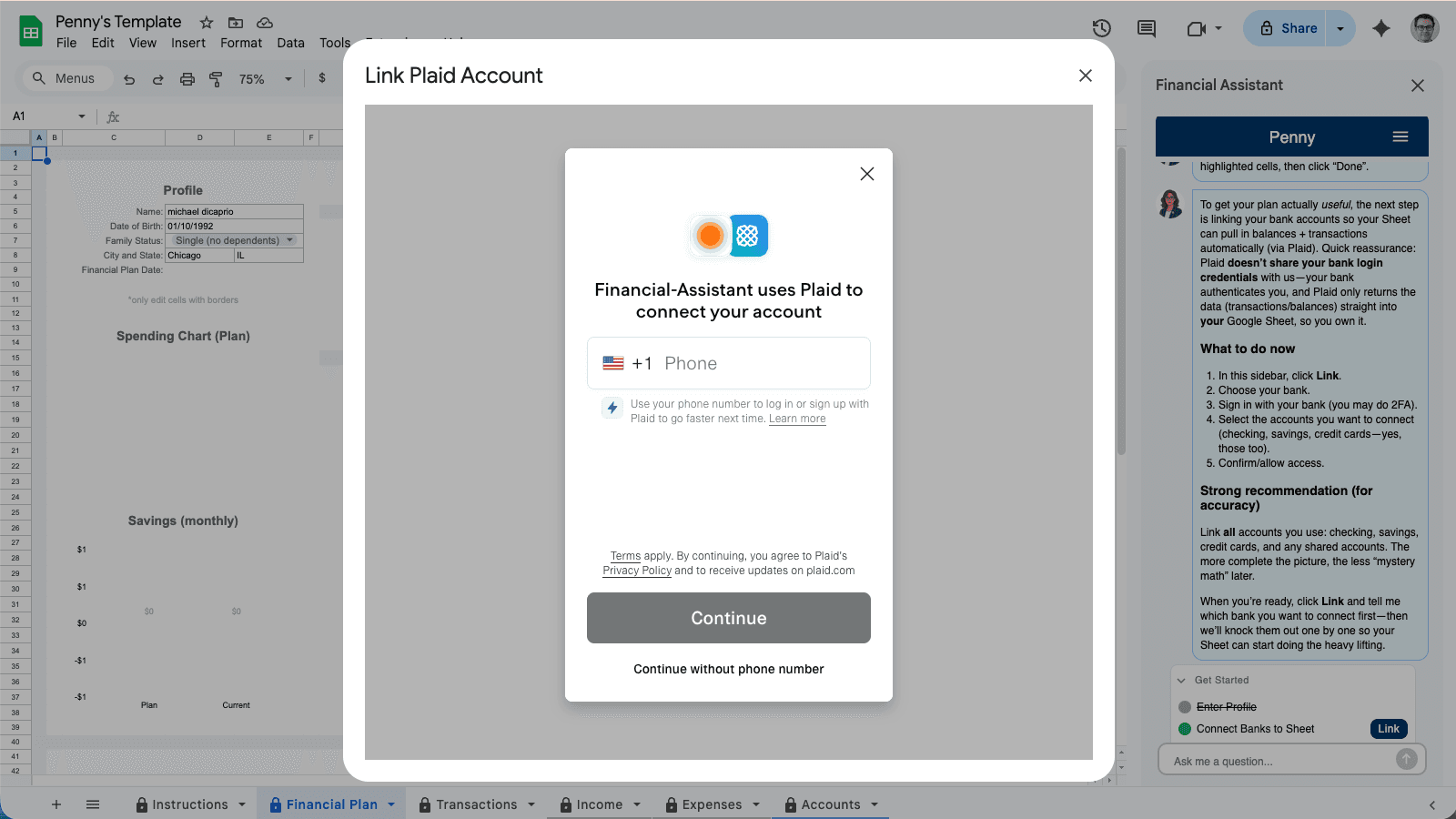
Read-only sync into Sheets
Connect once, then keep balances and transactions flowing into your Google Sheet.
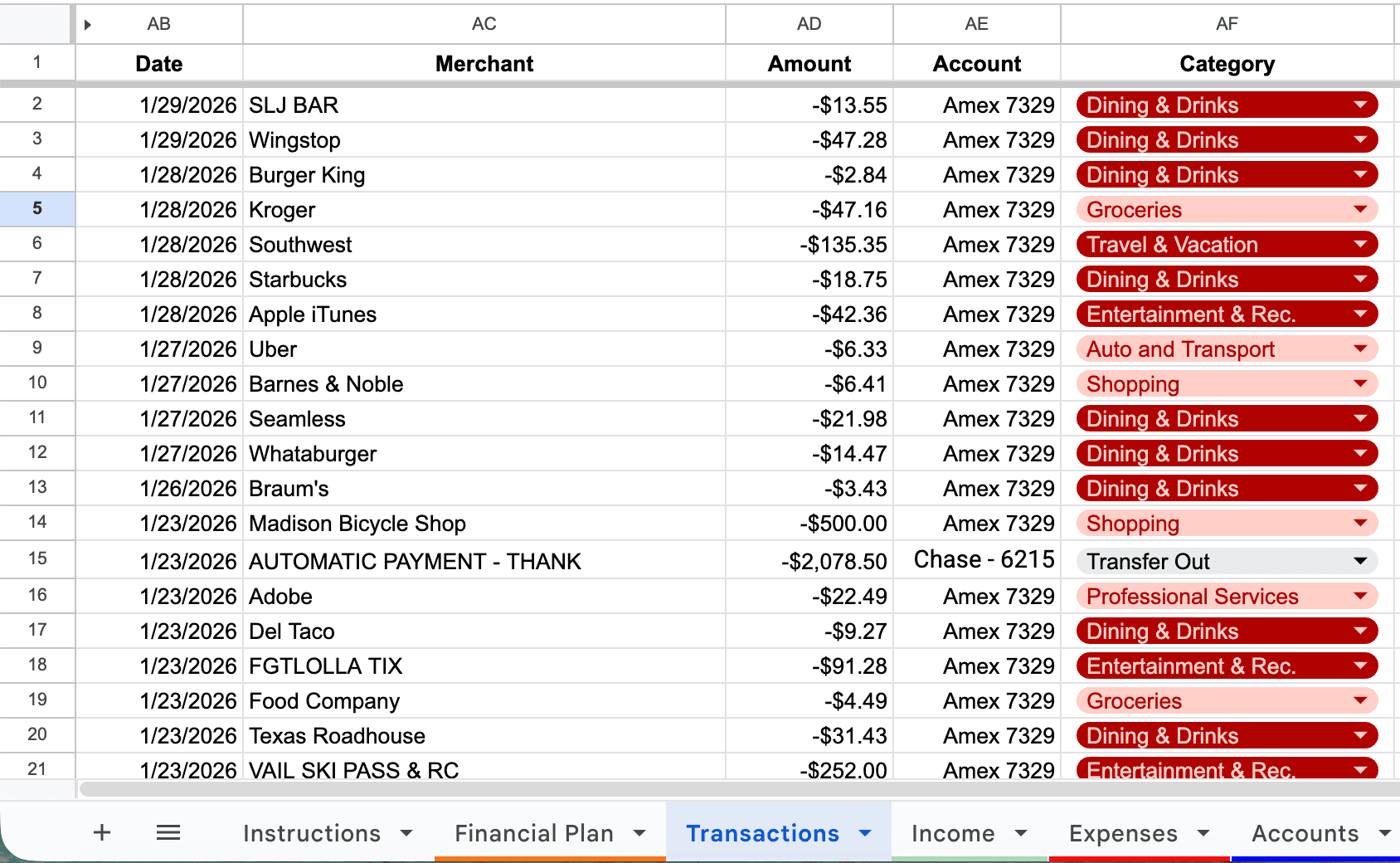
Transactions stay organized
A clean Transactions tab powers budgets, cash flow, and planning—without manual uploads.
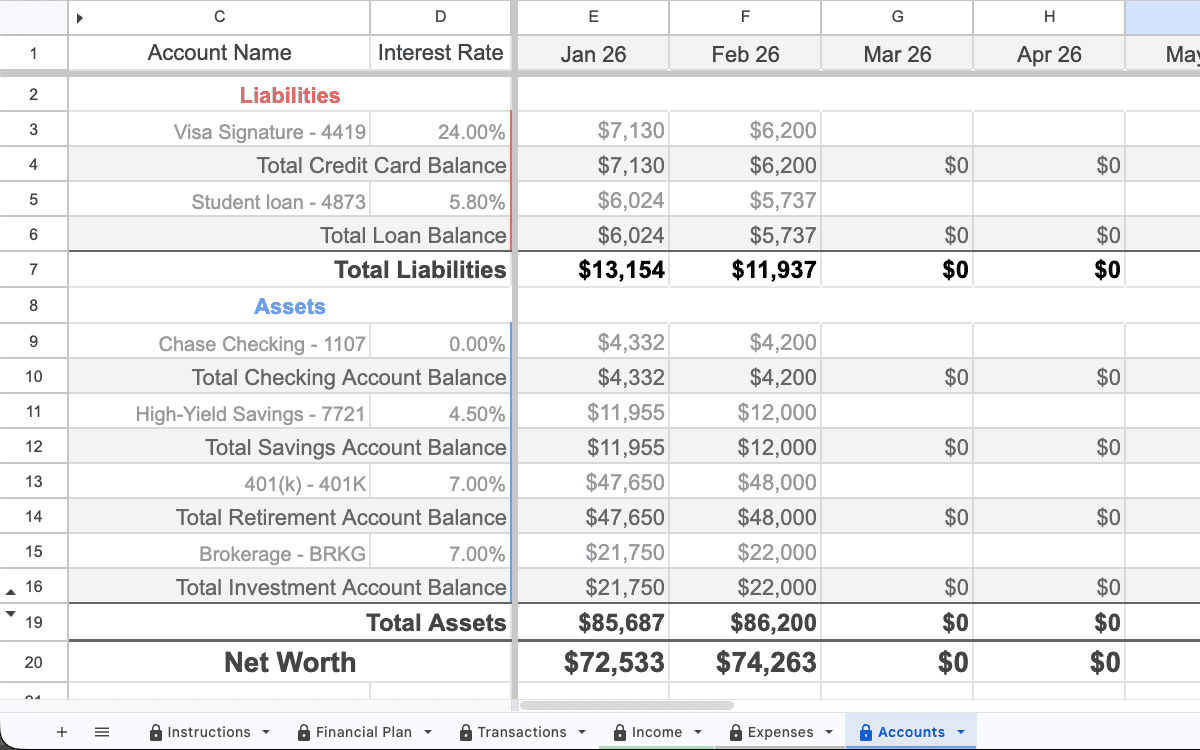
Accounts stay current
Bring assets and liabilities together so your net worth and plan use up-to-date balances.
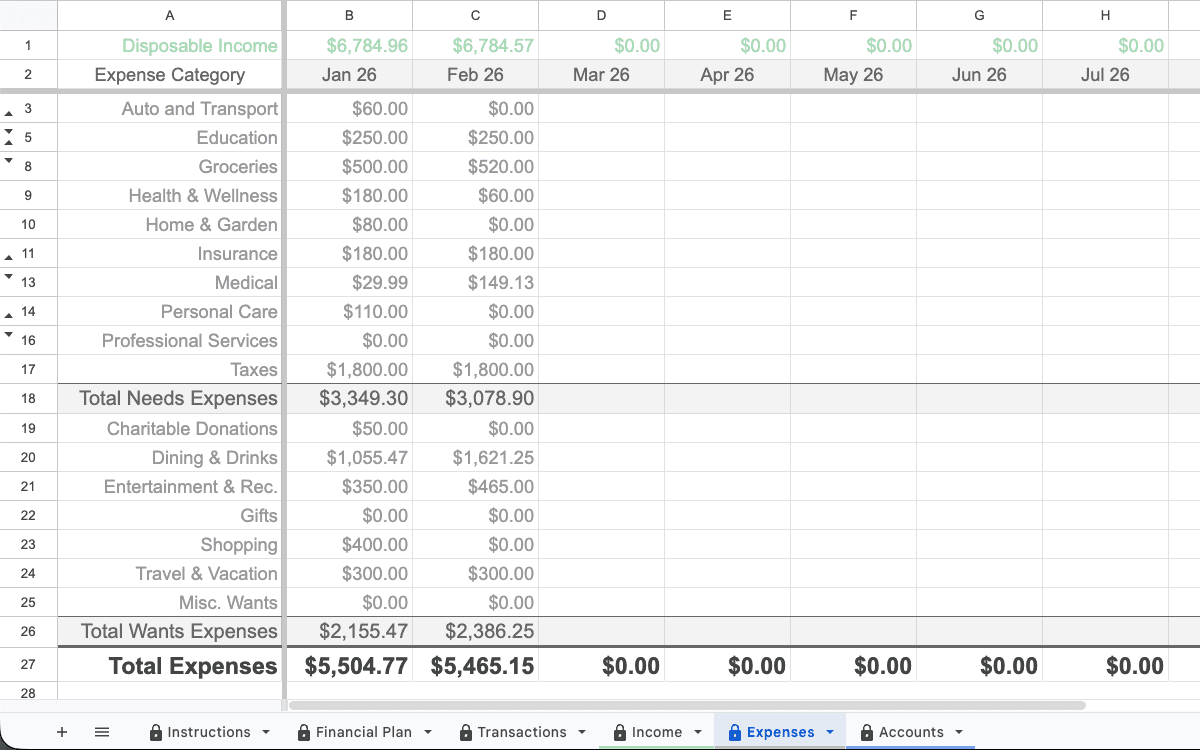
Categories you can fix
If something is miscategorized, recategorize it in Sheets and keep reports consistent.
What it is / what it is not
This is a read-only bank data sync into Google Sheets. It pulls balances and transactions so your planning tabs stay current.
It is not money movement: no transfers, bill pay, or account changes. You can revoke access at any time from your bank and the connector settings.
What updates daily
- Income: see what you earned—and plan ahead for what you’ll owe in taxes.
- Expenses: keep categories clean so you can spot trends and make changes.
- Accounts: bring assets and liabilities together for a complete picture.
Privacy first
Your data is stored in your Sheets. Penny is designed to work inside the Google Sheets experience so you stay in control.
Troubleshooting
- Nothing is updating: confirm you connected the right account(s) and check that new rows are appearing in the Transactions tab.
- Duplicates: wait for the next refresh window, then verify account mapping. If the feed is stable, duplicates usually stop.
- Categories look wrong: recategorize in Sheets so your budget and reports stay consistent.
Prefer the step-by-step setup guide? Read how to connect bank accounts to Google Sheets automatically.
FAQ
Is my data stored by Penny?
Your financial data is stored in your Google Sheets. Penny is designed to work inside your Sheets experience.
How often does my sheet update?
Your sheet stays current as new data arrives, so your Income, Expenses, and Accounts remain up to date.
Do I need desktop?
Desktop is recommended for setup and full features.
How do I get started?
Open the Money Management Sheet and follow the setup steps inside Google Sheets.
Why are there duplicates or missing transactions?
Most issues come from refresh timing or account mapping. The fix is usually: wait for the next refresh, verify the correct account is connected, and confirm the Transactions tab is receiving new rows consistently.
Can I change categories?
Yes. If something lands in the wrong category, you can recategorize it in your Google Sheet and your reporting stays consistent.
Is this read-only?
Yes. Bank-to-Sheets Sync is designed for read-only access to pull balances and transactions into your Google Sheet. It does not support transfers, bill pay, or account changes.
Ready to sync your sheet?
Open the sheet and begin setup in Google Sheets.
Get the Money Management Sheet