
Problem: Most bank-sync problems start before the first transaction lands because the sheet structure, permissions, or mapping are wrong.
Promise: Use this setup guide to connect once, structure the sheet correctly, and avoid cleanup work later.
Need the direct solution page? Sync bank transactions into Google Sheets with Bank to Sheets Sync.
Setup checklist before you connect
| Check | Why it matters | Pass test |
|---|---|---|
| Read‑only access | Prevents money movement | Bank auth screen shows “read‑only” |
| Data location | Controls who sees transactions | Policy says data lands in your sheet |
| Revocation | Lets you disconnect fast | You can revoke in bank settings |
| Refresh cadence | Keeps budgets accurate | At least daily updates |
How to structure the sheet before bank sync
- Create a Transactions tab with date, description, amount, account, category.
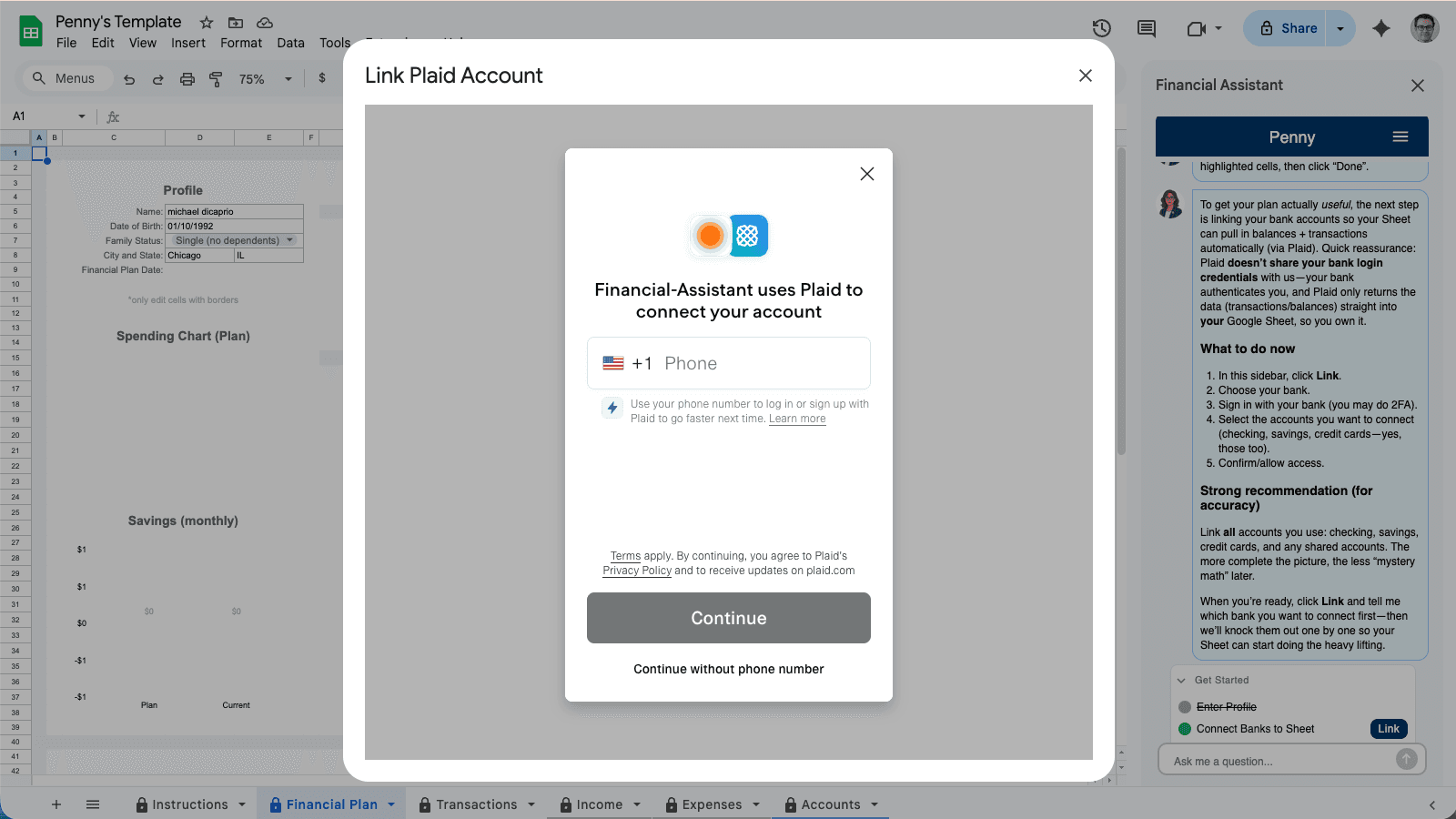
- Connect accounts through a read‑only bank link.
- Confirm new transactions are landing in the right columns.
- Review weekly and take one next action.
For the fast answer, read how do I connect my bank accounts to Google Sheets automatically. For safety details, see is it safe to connect my bank to an AI financial planner.
Related reads: Plaid Google Sheets guide, how to choose a bank sync method, and the finance answers hub.
Ready to keep your sheet updated automatically? Start with Penny’s Google Sheets plan.