
Why most templates fall apart
Templates are easy to buy and hard to keep. Without guidance, the “what do I do next?” problem always comes back.
- No system: a file isn’t the same as a money plan.
- Too much manual work: importing, cleaning, and maintaining is a second job.
- No follow‑through: templates rarely tell you what to do this week.
What you get
- A complete picture: Income, Expenses, and Accounts working together.
- Daily updates: your sheet stays current as new data arrives.
- AI guidance: create a plan and take action toward your goals.
Want the bank‑sync page? See Bank‑to‑Sheets Sync.
What it looks like in Sheets
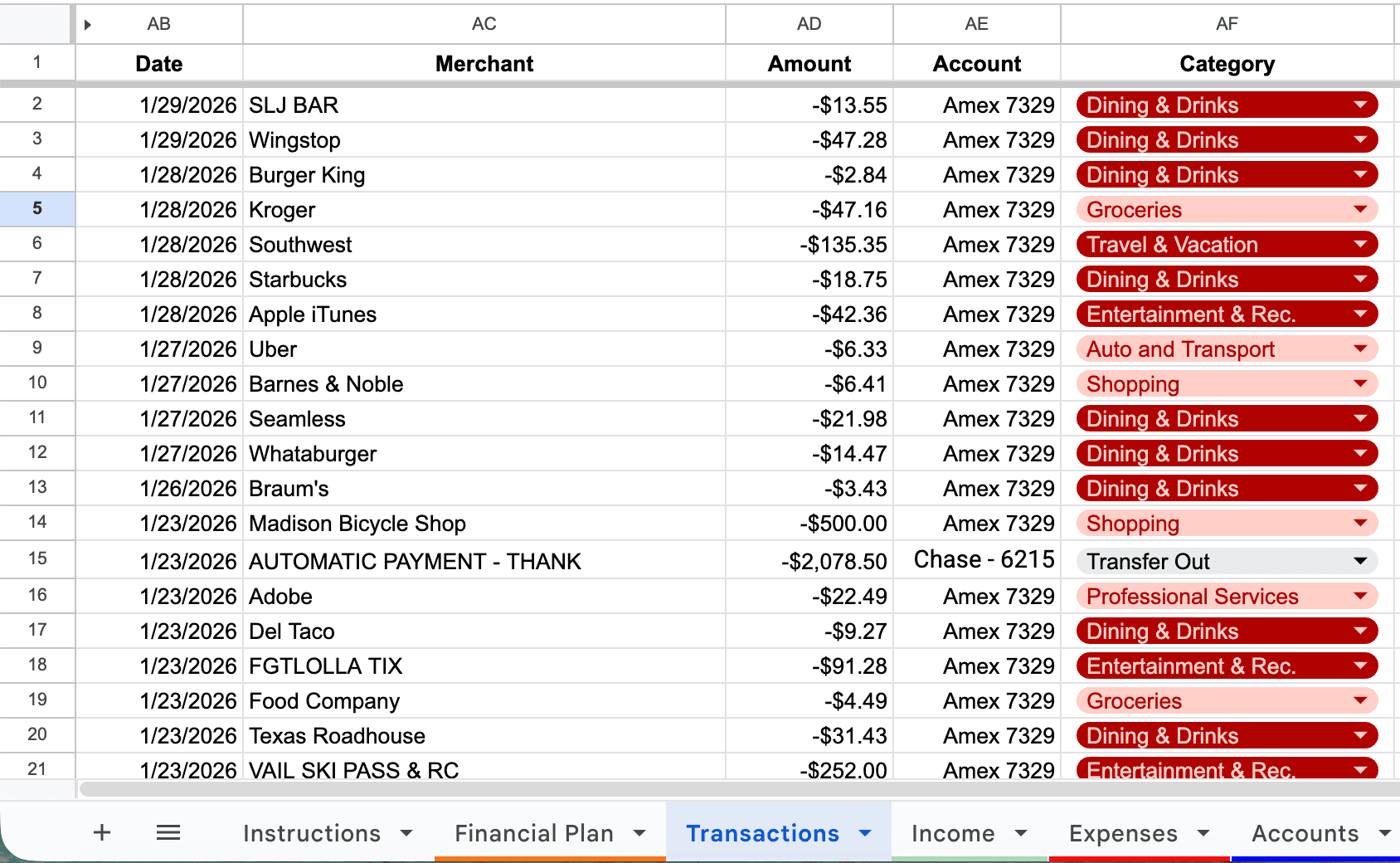
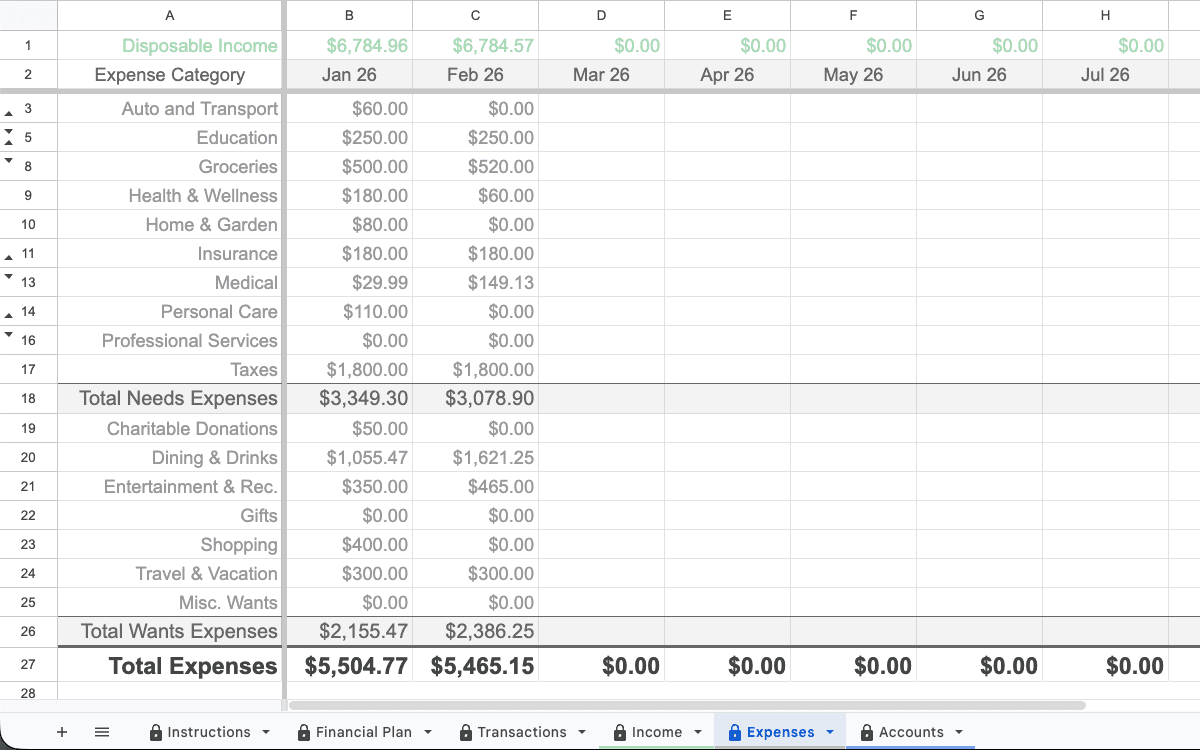
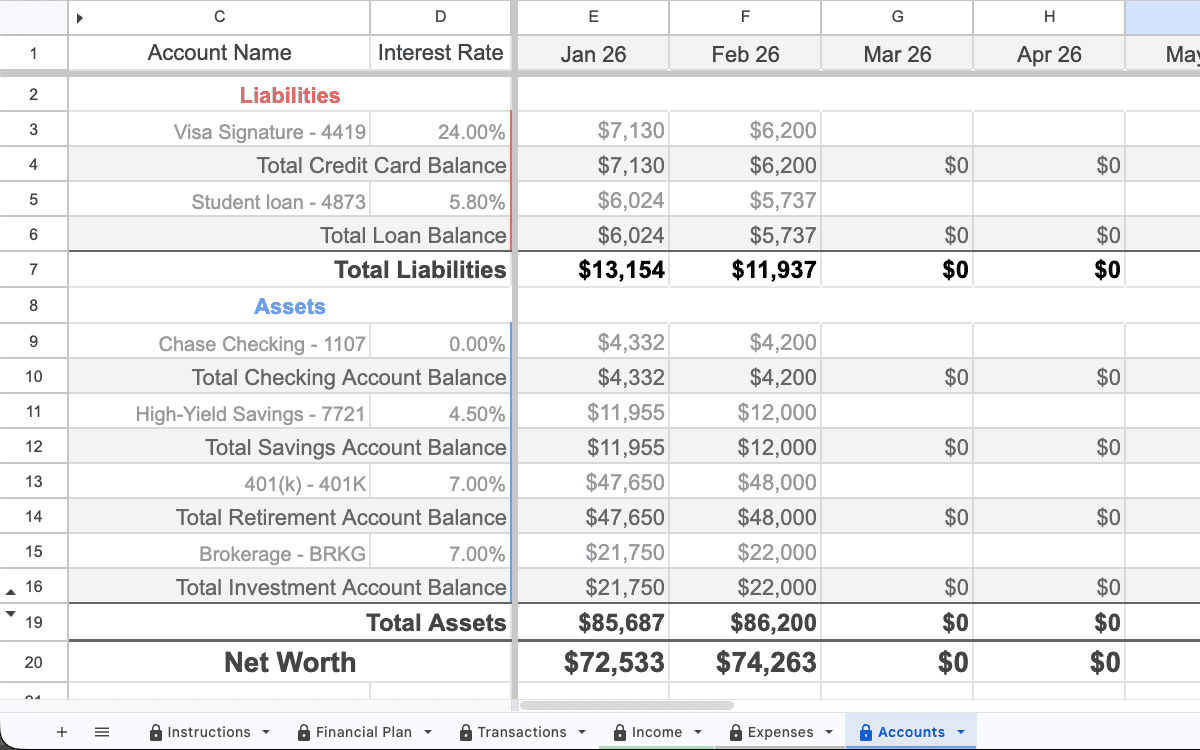
The point of an add-on is that your system lives in your spreadsheet. These are the core “money tabs” most people use weekly.
Want a full library of layouts? Browse Google Sheets finance templates.
Penny vs budgeting apps and static templates
Penny is built for people who want the flexibility of Google Sheets without the maintenance burden of doing everything manually.
- Google Sheets native workflow: keep working in your own spreadsheet instead of moving to a separate app.
- Automated daily updates: your data stays current, so reviews are faster and more consistent.
- Guidance with next steps: Penny helps turn numbers into concrete actions you can take this week.
- Ownership and control: your data and structure stay in your sheet, not locked in a proprietary dashboard.
Want the full breakdown? Read AI vs budgeting apps and add‑on vs template vs budgeting app.
How it works
- Open the Money Management Sheet in Google Sheets.
- Connect your accounts so your sheet stays updated.
- Use Penny’s guidance to create a plan and take action.
Typical setup time
Most people can get set up in ~5–10 minutes on desktop: open the sheet, connect accounts (read-only), then verify the Transactions tab is updating.
Privacy first
Your data is stored in your Sheets. Penny is designed to work inside the Google Sheets experience so you stay in control.
FAQ
Is this a template or a Google Sheets add-on?
Penny is a guided money management system built for Google Sheets. You keep the flexibility of Sheets with guidance built in.
Is my data stored by Penny?
Your financial data is stored in your Google Sheets. Penny is designed to work inside your Sheets experience.
Do I need desktop?
Desktop is recommended for full features and setup. You can view the sheet on mobile, but setup and the best experience are on desktop.
How do I get started?
Open the Money Management Sheet. Setup happens inside the spreadsheet experience.
Ready to get started?
Open the sheet and begin setup in Google Sheets.
Get the Money Management SheetDesktop/laptop only